
You can easily manage your receipts in the receipt overview.
To do this, first click on the "Receipts" menu item to access the overview.
Here, all your receipts will be displayed in a list view.
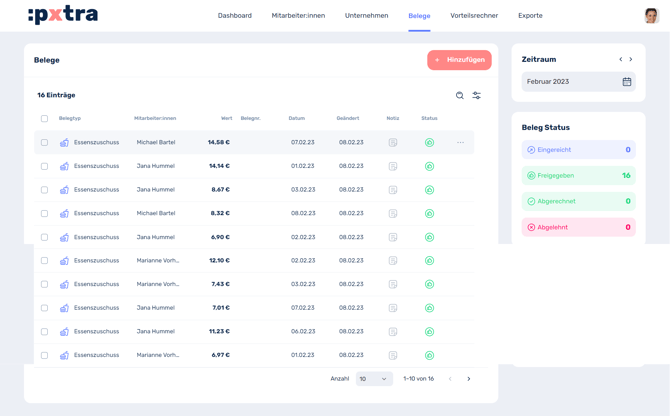
View receipts:
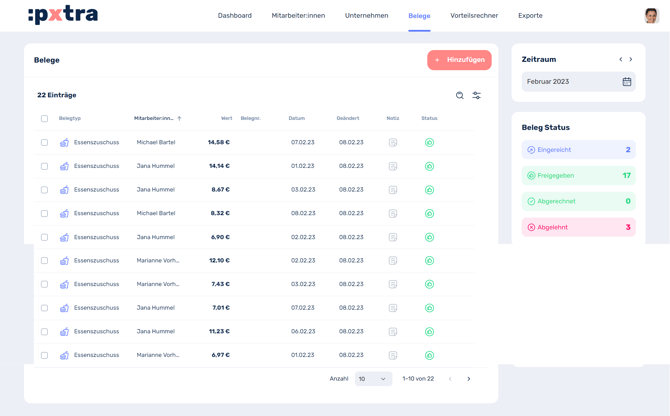
If you click on "Receipts" in the menu bar at the top, you will be taken directly to the receipt overview.
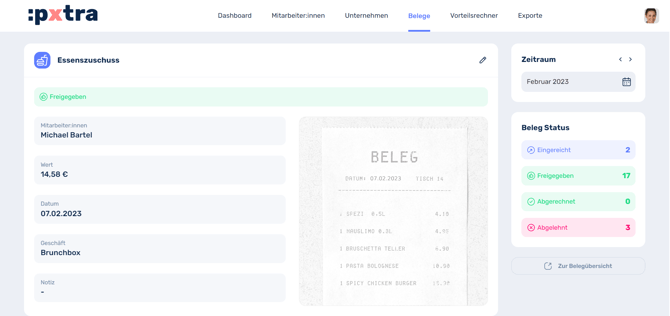
Here you can view your employee's receipt by clicking on the respective receipt.
Search and filter for receipts:
After selecting "Receipts" in the menu bar at the top, you will be taken directly to the Receipt overview.
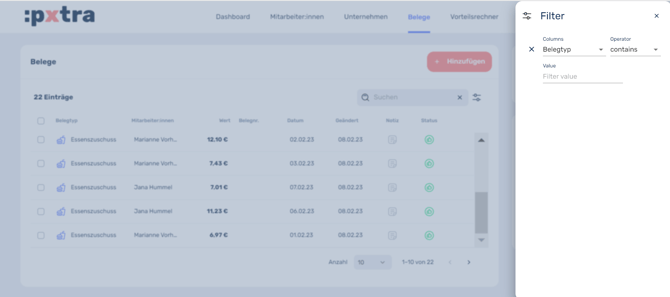
By clicking the magnifying glass in the upper right corner, you can now search your employees' receipts by various criteria.
The icon to the right of it allows you to filter the receipts.
Clicking this icon opens a window where you can adjust the settings.
Hint:
You can also download an overview of all receipts in the Imports/Exports tab using the Export function. This will give you an Excel file listing all receipts, as well as a folder containing the individual receipts as image files.