
To change the payment details, click on Company in the top menu bar.
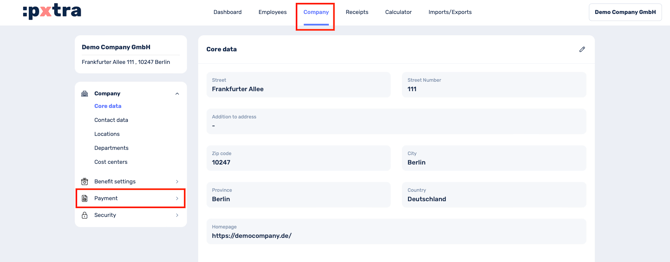
Now you can select Payment in the menu bar on the left and have the option of making various adjustments:
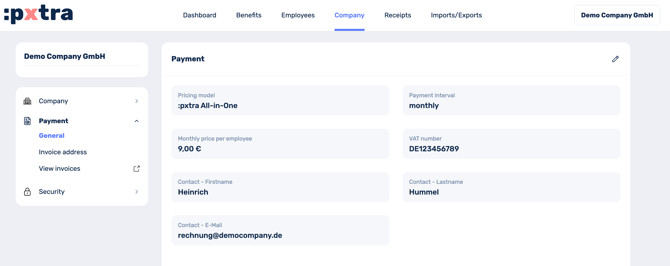
1. General
If the contact for billing questions on your site has changed, enter the new contact person and email address here. This will enable us to clarify invoice-related questions quickly and efficiently.
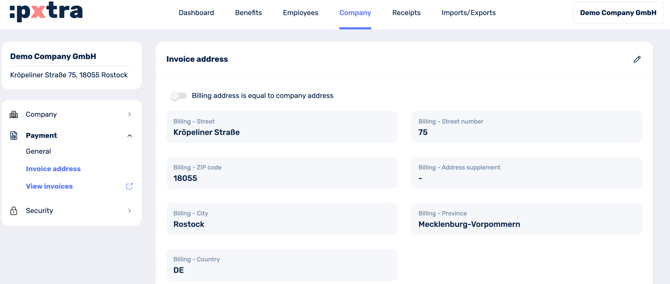
2. Invoice address
The billing address is automatically filled with the company address you have entered in the platform.
If this billing address differs from the company address or changes, click on the pencil icon at the top right and deactivate the toggle Billing address corresponds to company address. You can now make your entries.
3. View invoices (enter means of payment)
To enter the payment method for the first time or to adjust it at a later date, click on View invoices in the Payment section.
You will now be redirected to the page of our payment service provider Stripe, where you can click on Add payment method under Payment methods and enter the information for the SEPA direct debit procedure or for payment by credit card.
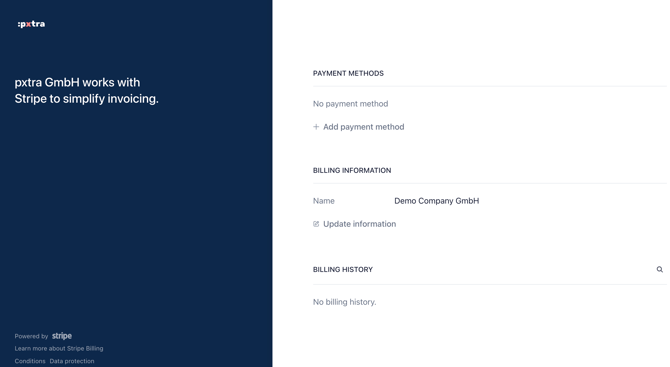
If you would like to use the SEPA direct debit payment method, please enter your full address, as only then will the Add button below become active and you will be able to save the data.
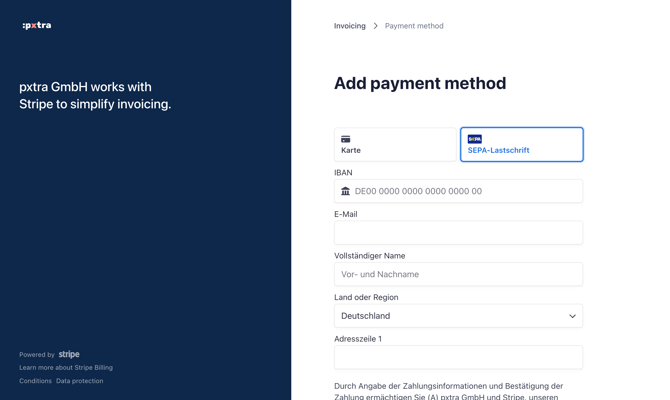
In addition to storing the payment method, you can also use this method to adjust your billing address and to view and download your invoices via billing history.