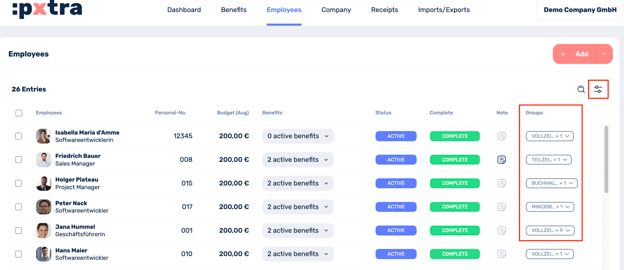
In some cases, it can be helpful to assign employees to groups in order to achieve a better presentation in the Employees section of the platform. For example, if employees should receive different budgets depending on the group, e.g. due to part-time work, home office work or similar.
You can create groups as required directly in the platform under Company and in the menu bar on the left under Groupings.
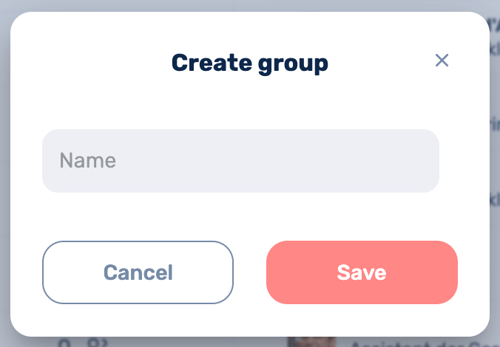
To create a group, click on Create group in the top right-hand corner and enter a name for your group.
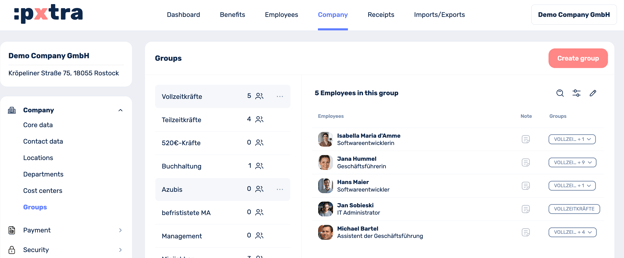
To assign employees to your group, double-click on the group. You will now see the employees who are not in the group (on the left-hand side) and those who have already been assigned to the group (on the right-hand side).
If you want to assign employees to the group, click on the arrow on the left. If you want to remove employees from the group, click on the x on the right-hand side.
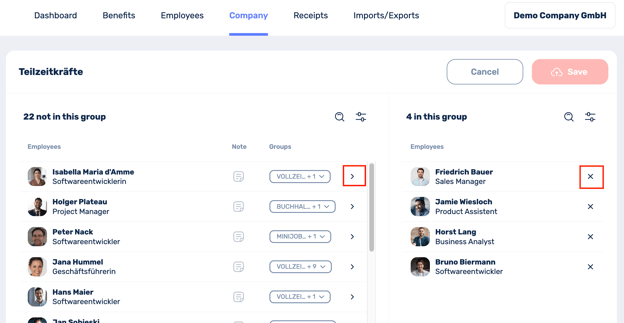
By clicking on Save at the top, you can save your assignments.
You can now see the groupings in the Employees tab on the right-hand side. You can now use the filter to filter directly for a specific group in order to view the employees contained in it and make settings for this group collectively, e.g. save the budget.