
You can create new employees at any time in the employee overview. There are currently three ways to add employees to our platform:
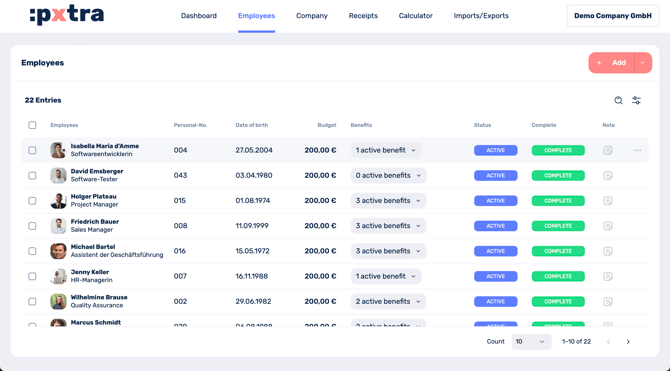
To add them manually, click on Employees in the top menu bar.
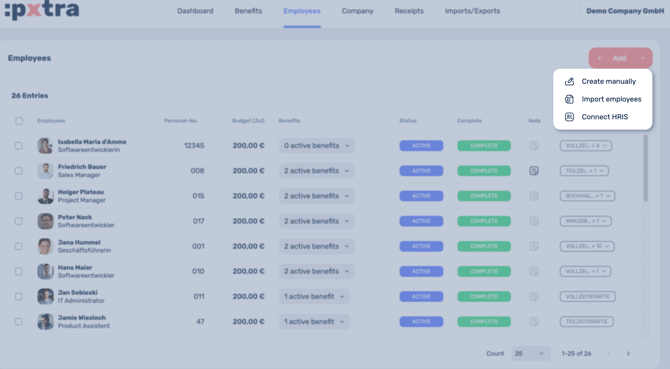
Now you can choose whether you want to create the employees manually, import them or connect HRIS.
1. create manually:
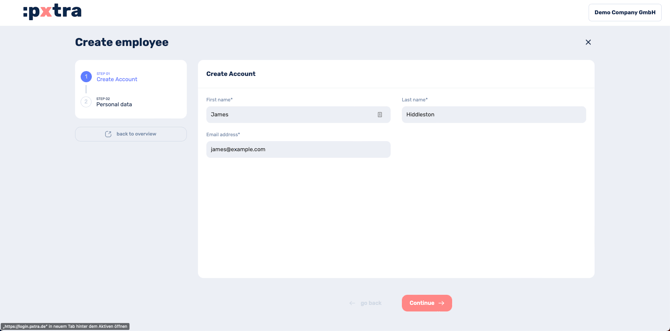
We require 4 mandatory details to create an employee in the profile. These are first name, surname, e-mail address and personnel number.
Additional / missing information can be added via the edit mode of the employee profile in order to obtain a complete employee profile. However, this information is optional and some of it can also be entered in the app by the employees themselves (e.g. date of birth).
2. Import employees
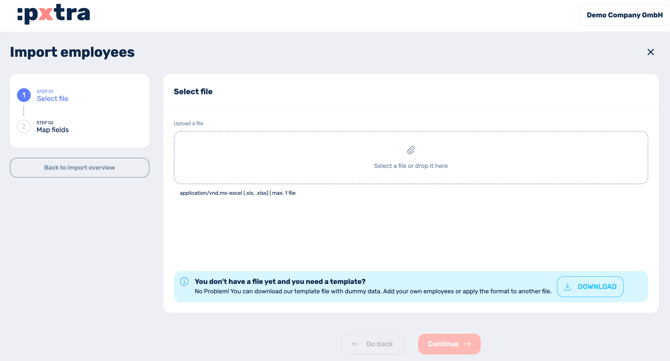
Do you already have your employees' data in an Excel overview? Perfect! Then you can upload it directly here.
Alternatively, you can download a template, fill it with your employees' data and upload it again.
As soon as you have uploaded your file, you can go to Step 02 via Next, where you can assign the fields in your file to the corresponding information: e.g. column A = first name, column B = surname, etc.
3. Connect HRIS:
If you use an HR platform, you can set up an automatic sync via the Connect HRIS option. The connection dialog will open, where you can select your HR system (e.g. Personio, Workday, SAP SuccessFactors, BambooHR and many more). You will be guided through the entire process, from selecting your system and entering your credentials to the configuration.
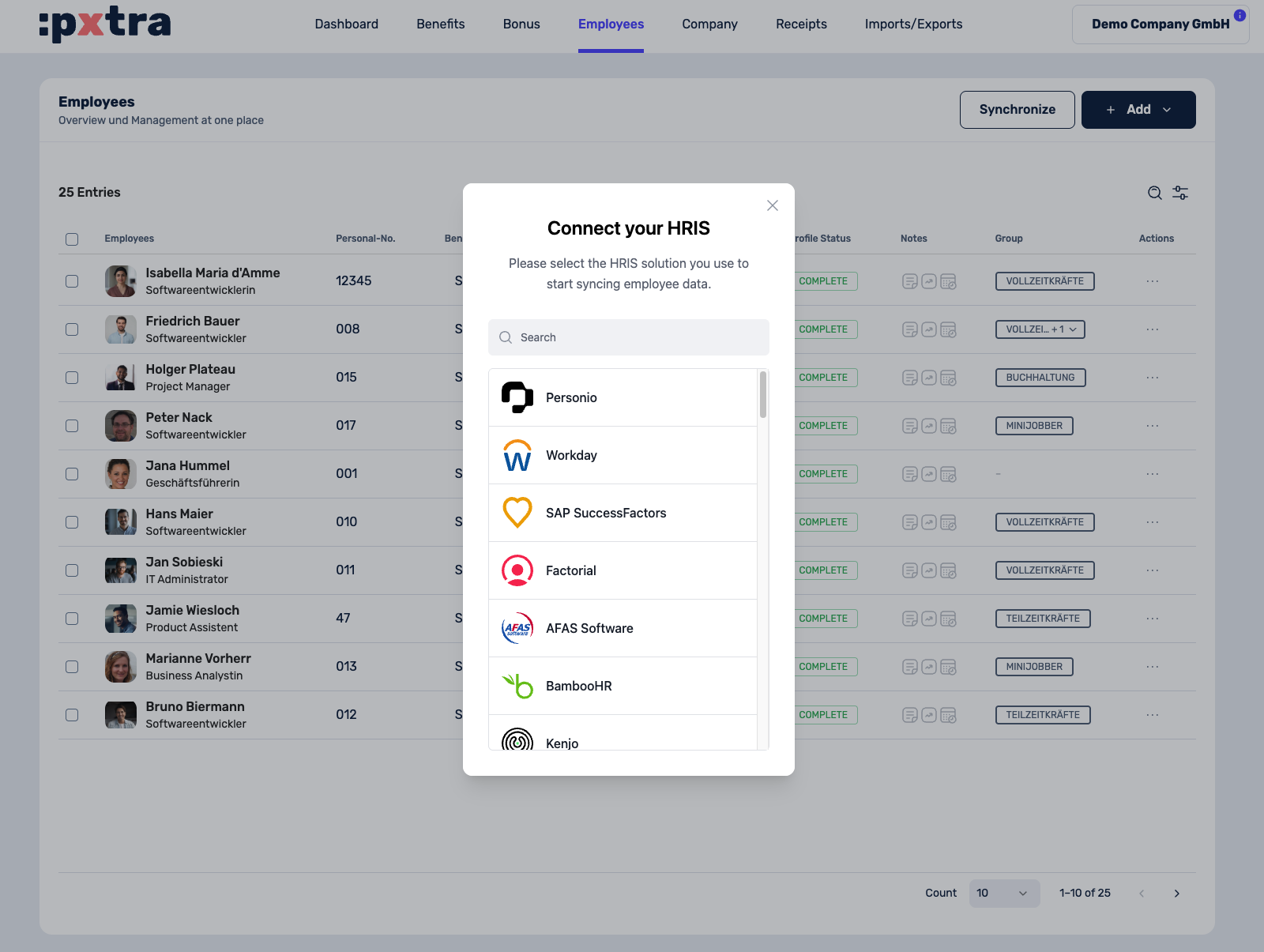
Depending on your HR system, you will be asked to provide various details in the dialog. This may include your domain, API credentials or required permissions. For many systems, a step-by-step connection guide is available directly in the dialog to walk you through the setup. The 4 mandatory data fields are: first name, last name, email address and employee number.
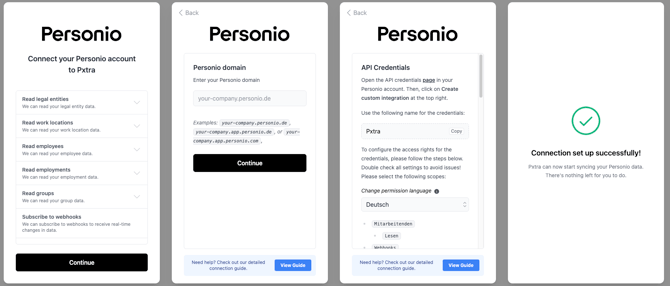
Once the connection is established, you can configure which employees should be synchronised. Using various filter criteria (e.g. legal entity, location), you define which employees from your HR system will be imported. A preview shows you how many employees will be synchronised before you confirm.
As soon as you have completed the configuration, the first synchronisation starts automatically. In the dashboard you will see the status "Sync running" and shortly after, your synchronised employees will appear in the list. Once you have successfully completed the HR sync, your employee data will be automatically transferred to the platform and you can proceed with setting up budgets and inviting your employees.
If you have any further questions or get stuck at any point, you can reach our customer service at any time via cm@pxtra.de