Most :pxtra benefits are so-called wage types. These wage types have specific SI (Social insurance) and tax characteristics for payroll accounting. With the following steps, export files for "DATEV Lodas"and "DATEV Lohn und Gehalt" can be generated.
Step 1: Create/check wage types in DATEV
| Designation | DATEV master wage type | Description DATEV master wage type | Client data/tax/wage types/register tax, SI, UV / for tax and SI treatment |
| Childcare costs | 880 | Kindergarten allowance | 4 Earnings, tax-free and SI-free |
| Recreation allowance | 846 | Recreation allowance p.St | 41 Recreation allowance p. St/SI-free |
| Meal subsidy | 201 | Permanent reference St/SI-free | 4 Earnings, tax-free and SI-free |
| Meal subsidy | 200 | Permanent reference Rewarding salary | 48 lump sum taxed benefits, 25%, SI-free |
| Travel costs | 853 | Fare lump sum taxed | 47 Lump sum taxed travel costs |
| Health promotion | 201 | Permanent reference St/SI-free | 4 Earnings, tax-free and SI-free |
| Internet flat rate | 200 | Permanent reference Rewarding salary | 48 Lump sum taxed benefits, 25%, SI-free |
| Public transport tickets | 866 | Jobticket St/SI-free | 22 travel costs, Ausw.Lohnkonto and Income tax certificate, Tax-free and SI-free |
| Telephone costs | 201 | Permanent reference St/SI-free | 4 Earnings, tax-free and SI-free |
| Payment in kind | 869 | Payments in kind ST+SI-free | 4 Earnings, tax-free and SI-free |
Step 2: Activate DATEV export and store wage types in pxtra
In the :pxtra platform you can now click on "Company" in the menu bar at the top. Another menu bar then opens on the left, in which "Benefit settings" are selected. Then click on the sub-item "Payroll" in the left menu bar.
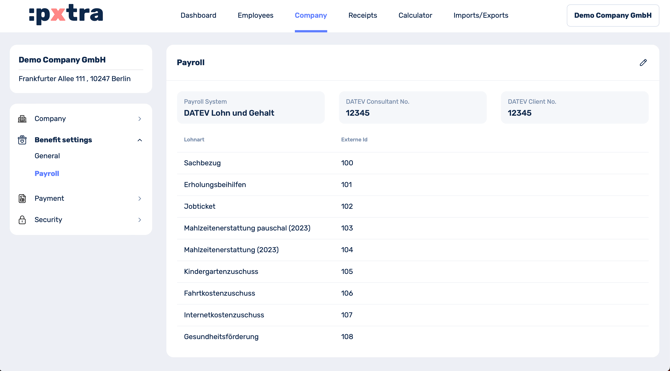
Now the desired payroll solution (DATEV Lodas or DATEV Lohn und Gehalt) can be filled in. To do so there is a pen icon in the top right corner, which must be clicked for editing. Make sure to select the appropriate payroll system.
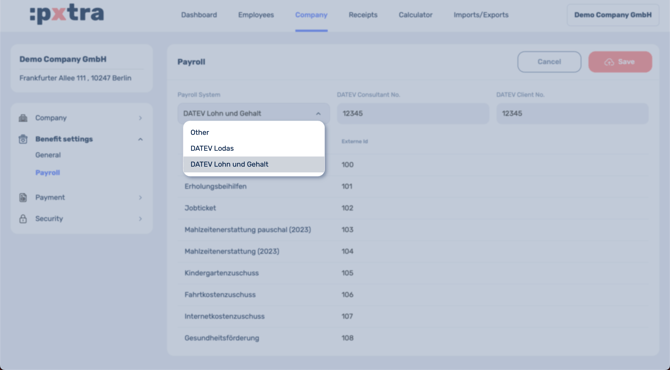
Furthermore, the following data must be entered into the input mask:
- DATEV consultant number
- DATEV client number
- DATEV Wage type IDs for the :pxtra benefit modules
Step 3: Generate export files
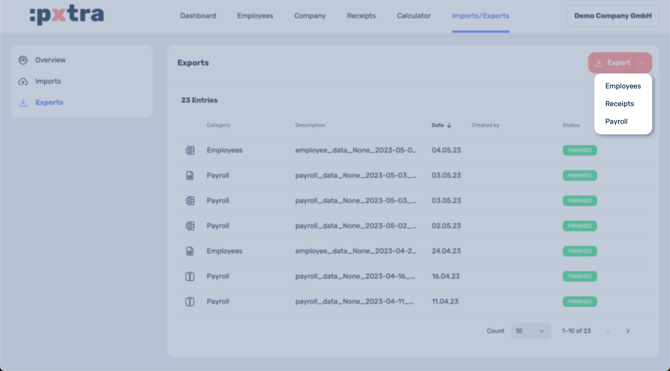
After successful setup, monthly export files for DATEV can now be created. To do this, click on "Imports/Exports" in the menu bar at the top, then on "Exports" in the left menu bar and finally on the "Export" button in the top right. Select "Payroll" as desired Type.
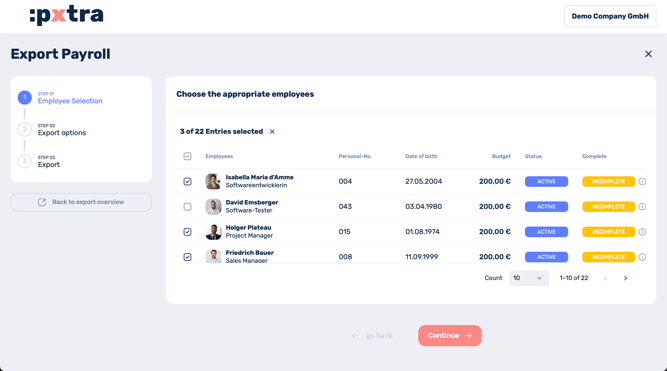
In the following step you select all applicable employees which payroll information you want to export. You can also select all employees at once.
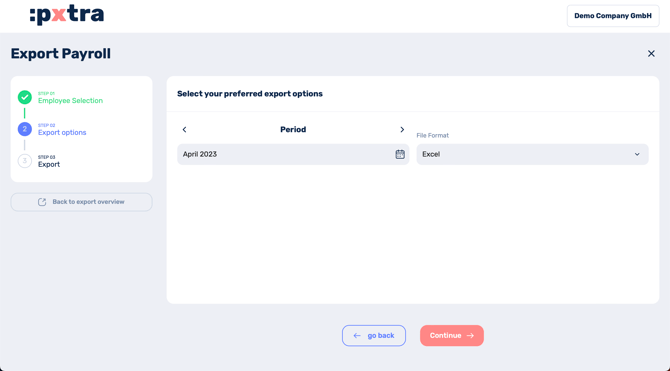
After clicking "Continue" you define the desired accounting period and select the file format "DATEV" for the export. Now click "Continue".
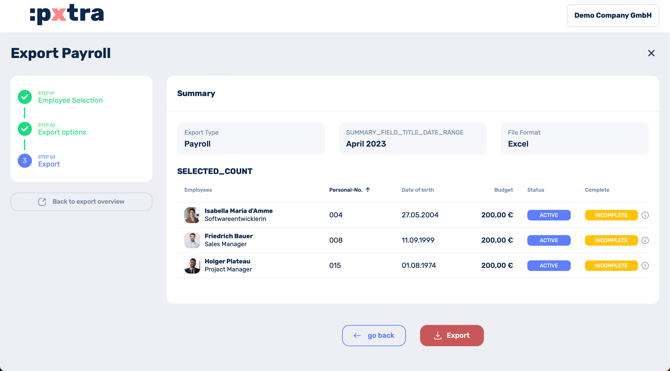
At the last page you get a summary of the data you have selected in the previous steps. If all needed information ist contained, click the "Export" button at the bottom of the page.
Step 4: Import data into DATEV
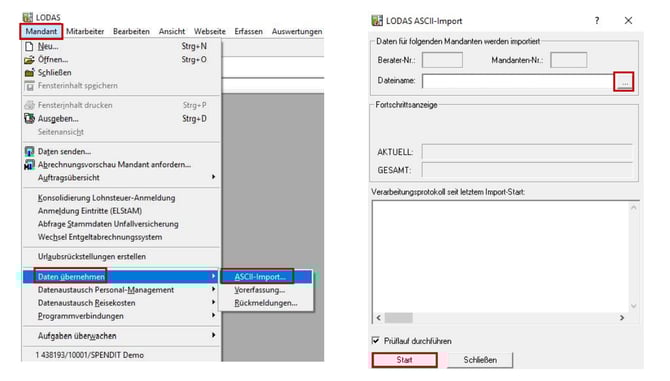
The monthly files can now be imported to DATEV. Click on "Mandant" in DATEV to initiate the data import. Select "Daten übernehmen" and then click on "ASCII-Import...". Choose your file and click "Start".