
If you use Personio to prepare your payroll, you can connect our system to Personio so that you can send payroll data to Personio with a single click.
To set up the interface in the platform, go to the Benefits tab and select Personio as your payroll system.
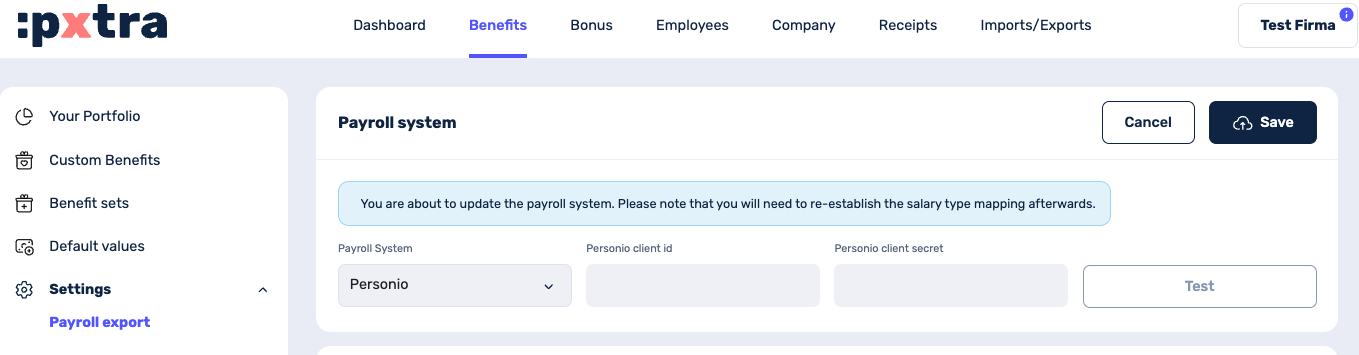
For the interface, you will need the Personio Client ID and the Client Secret, which you can find in Personio.
To do this, go to Settings in Personio, then navigate to the Integrations section and select API Access Data. Here you can create a new integration. In the access rights section, select that employees can be read and that remuneration can be read and edited. Additionally, select the email address under the readable attributes so that we can uniquely identify the employees.
If you proceed, you will now see the Client ID and the Client Secret, which you can enter into our platform and test. The platform will automatically confirm whether the interface has been successfully created.
Mapping remuneration from Personio with the pxtra platform
Once the connection has been successfully established, you can map the wage types accordingly. You will see a drop-down menu directly next to the benefits, where you can select existing remuneration items from Personio.
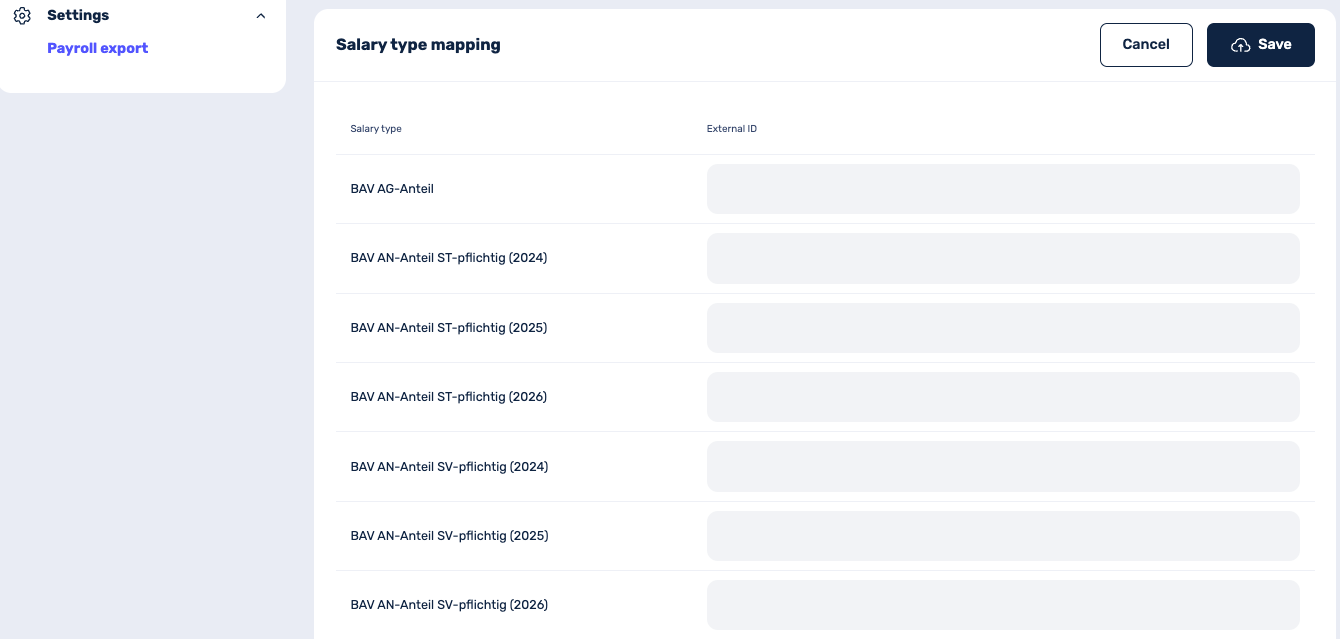
If no payments have yet been set up in Personio for some of the benefits, new payments will be created automatically in Personio during the first sync.
Start the sync from pxtra to Personio
Once setup is complete and the first payroll export is required, you can start the export directly within the platform under Benefits – Settings – Payroll Export on the right-hand side. You can then check the export logs to see whether everything ran correctly or if any errors occurred:
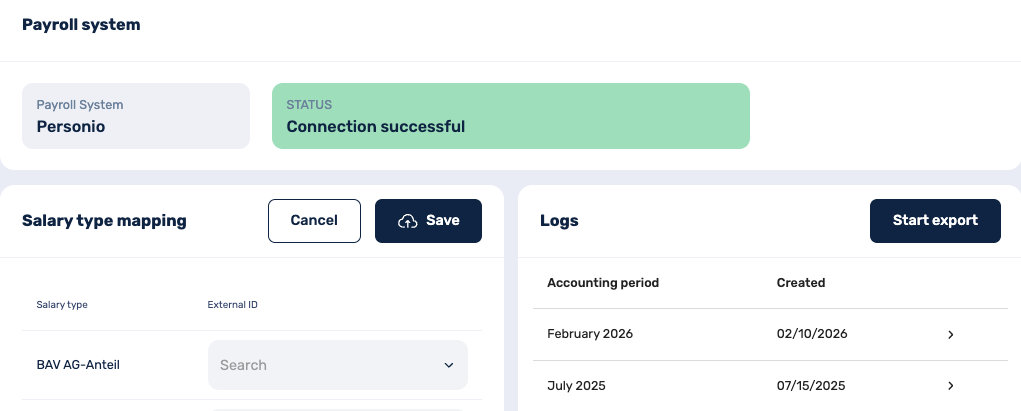
In addition, once the sync is complete, an email summarising the sync is automatically sent to all company managers.