
When employees leave the company, it is important that we receive this information so that we can start an offboarding process accordingly and terminate the benefits on time so that no unnecessary costs are incurred on your side.
What does the offboarding process look like?
14 days before the specified departure date, the employee will receive an email informing them that we have been notified of their departure and that they should save relevant data from the app, e.g. download vouchers.
As soon as the leaving date is reached, the employee's status in the platform is set to former and the benefits are terminated. This means that the benefits are no longer processed from the month following the employee's departure.
If the person has used benefits that require receipts (public transport, telephone costs, meal allowance), the data will still be shown in the payroll export in the month after leaving, as the payroll run is always delayed by one month due to the submission of receipts by the 5th of the following month.
How do I report the departure?
There are two ways to communicate the leaving date to us, depending on how you import the employee data into our system:
1. Employee data via manual or Excel import
If you import your employee data into our system manually or via an Excel import, you can easily enter the leaving date via the respective employee's name.
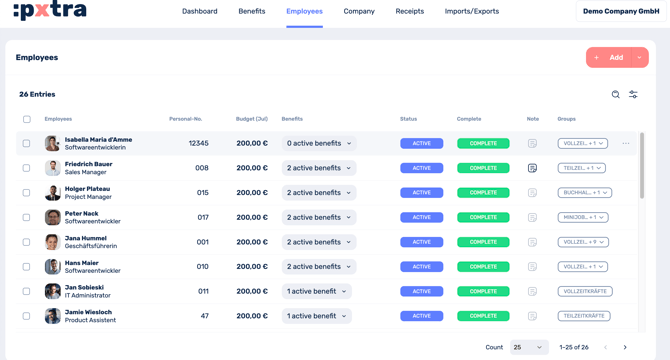
To do this, go to the Employees tab in the platform and click on the relevant employee profile (use the search bar at the top right to find the person more quickly if necessary).
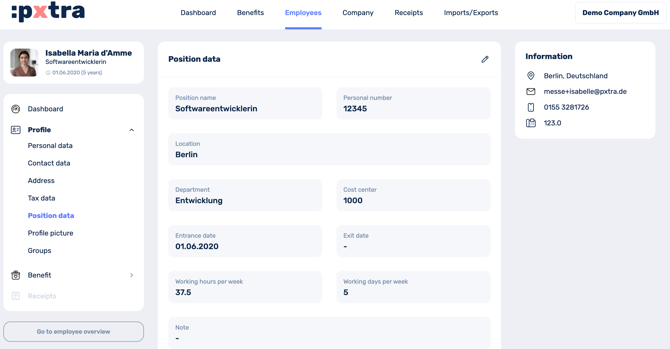
Now click on Position data in the employee profile in the menu bar on the left and enter the exit date by clicking on the pencil in the top right-hand corner. As soon as you have saved the entry, it will be sent to us and the offboarding process described above will start.
2. employee data via HRIS-Sync
If you have set up an interface to your HR system and specified that we may read the leaving date from the system, the leaving date is automatically transmitted to us.
You have the option of checking via the platform whether this has been done correctly by calling up the employee profile in the platform and checking the information under Job data (see point 1. Employee data via manual or Excel import).
If the date has not been transferred despite being entered into your HR system and synchronized, please contact us immediately at cm@pxtra.de so that we can check and correct the settings.
If the date has been correctly transferred to the platform, the offboarding process described above will take place.